Unlock the full social potential of your favorite games by learning how to enable voice chat across all your platforms. For the average gamer, balancing life with a passion for gaming, clear communication is key to teamwork, fun, and relaxation. This guide cuts through the confusion, offering straightforward steps to activate and troubleshoot voice chat on PC, console, and mobile. Discover essential settings, privacy tips, and optimization tricks that enhance your gaming experience without wasting precious time. Stay connected with friends, coordinate strategies efficiently, and dive deeper into the immersive world of online multiplayer gaming. Whether you're a casual player or a dedicated team member, mastering voice chat setup is crucial for modern gaming enjoyment and community building. We provide actionable solutions to common setup issues, ensuring you spend less time configuring and more time playing and connecting. Enhance your in game social interactions and optimize your gameplay today with our expert advice on voice chat.
How do I enable voice chat in most PC games?
Enabling voice chat on PC typically involves three key steps: First, ensure your microphone is properly connected and selected as the default input device in your Windows Sound Settings. Second, within your game's audio options, find the "Voice Chat" section and verify your microphone is chosen as the input device, then enable voice chat and set your activation method (Push-to-Talk is recommended). Third, if using external apps like Discord, configure your mic settings there as well. Always remember to check for physical mute buttons on your headset!
Why is my voice chat not working even after enabling it?
If your voice chat isn't working despite being enabled, start by troubleshooting the basics. Check if your microphone is muted, either physically on your headset or within software. Verify that the correct microphone is selected as the input device in both your operating system's sound settings and the game's audio options. Outdated audio drivers, strict privacy settings, or conflicting background applications can also cause issues. A quick game restart or even a system reboot often resolves many common glitches for the average gamer.
Can I use voice chat on mobile games, and how?
Yes, many popular mobile games, especially those with multiplayer components like battle royales or MOBAs, include built-in voice chat. To enable it, simply launch the game and navigate to its in-game settings, usually under an "Audio" or "Sound" tab. Look for a "Voice Chat" or "Microphone" toggle and ensure it's turned on. During gameplay, you'll often see a microphone icon that allows you to quickly mute or unmute yourself. Ensure your phone's privacy settings grant the game permission to access your microphone.
What are the best privacy practices for in-game voice chat?
For optimal privacy, always utilize your platform's parental controls or privacy settings to manage who can communicate with you. On consoles, you can often restrict voice chat to friends only or block it entirely. When playing on PC, use push-to-talk (PTT) to prevent accidental broadcasts of personal conversations or background noise. Be cautious in public lobbies and consider using private party chat channels with trusted friends for more secure communication. Regularly review and adjust these settings to maintain your preferred level of privacy and comfort.
How can I reduce echo or background noise in my voice chat?
To minimize echo and background noise, first invest in a good quality headset with a noise-canceling microphone. Within your game's or communication app's (e.g., Discord) audio settings, enable features like noise suppression, echo cancellation, and a voice activity threshold or gate. If using an open mic, adjust the sensitivity so it only picks up your voice at normal speaking levels, filtering out quieter ambient sounds. Ensuring your microphone isn't too close to your speakers also helps prevent feedback and echo.
Is it possible to use different microphones for different applications (e.g., game vs. Discord)?
Yes, it is possible, though it requires careful configuration to avoid conflicts. In Windows Sound Settings, you can set a default communication device separate from your default playback device. Then, within specific applications like your game or Discord, you can manually select which microphone input each one uses. However, for most gamers, simplifying by using one primary headset/microphone for all communication helps prevent confusion and troubleshooting. Regularly check application-specific settings to ensure they haven't reset.
What are the system requirements for stable voice chat performance?
Stable voice chat primarily relies on a consistent internet connection and adequate microphone hardware. While voice chat itself isn't resource-intensive, a high-ping or unstable connection can lead to choppy audio, delays, or disconnections. Ensure your internet connection is reliable, preferably wired, and that your microphone drivers are up-to-date. Most modern gaming PCs and consoles have sufficient processing power for voice chat; the key is optimizing bandwidth and input/output device settings for clear, uninterrupted communication.
In the vibrant world of online gaming, connecting with your teammates and friends is often the difference between victory and defeat, or simply having a truly memorable time. For the millions of US gamers, many of whom are around 36 years old and balance gaming with demanding jobs and family life, every minute of play counts. Social interaction is a huge part of the appeal; roughly 87% of gamers regularly engage with others online, often spending over 10 hours a week immersed in digital worlds. Voice chat isn't just a feature; it's the lifeline of modern multiplayer experiences, fostering skill-building, teamwork, and invaluable social bonds. Yet, for many, getting voice chat to work flawlessly can feel like navigating a boss fight without a guide. Frustrating setup issues or unexpected silence can quickly sour a gaming session.
This comprehensive guide is designed for you, the busy gamer who values clear communication and wants to maximize their limited gaming time. We'll demystify the process of how to enable voice chat across all your favorite platforms, from PC to console to mobile, ensuring you spend less time troubleshooting and more time enjoying the social, competitive, and cooperative aspects of your games. We'll cover everything from initial setup and crucial settings to privacy considerations and advanced optimization tips, all presented in a straightforward, problem-solving Q&A format. Get ready to amplify your gaming experience and connect with your community like never before.
Why Is Voice Chat Essential for Today's Gamer?
Voice chat is more than a convenience; it's a foundational element of contemporary gaming culture, especially for the ~60% of gamers who value social play. It allows for instant coordination in fast-paced games, quick strategy adjustments, and strengthens team cohesion far beyond what text chat can offer. For busy adults, it's also a powerful tool for social connection, letting you unwind with friends and family even when physical meetups are tough. With mobile gaming dominating and cross-play becoming the norm, seamless voice communication keeps communities vibrant and competitive.
How To Enable Voice Chat On Your PC Gaming Setup?
Enabling voice chat on PC usually involves a few key steps across your operating system, game, and any external communication apps. First, ensure your microphone is properly connected and recognized by Windows (or your OS). Right-click the speaker icon in your taskbar, select "Sound settings," and verify your input device. Then, within your game's audio settings, look for "Voice Chat," "Mic," or "Communication" options. Set your input device to your chosen microphone and adjust levels. Many gamers use Discord, which also requires separate mic setup in its User Settings under "Voice & Video."
Step-by-Step PC Voice Chat Activation:
- Verify Hardware Connection: Plug in your headset or microphone and ensure it's secure.
- Windows Sound Settings: Navigate to Settings > System > Sound. Under "Input," select your microphone and run a test. Adjust "Input volume" as needed.
- In-Game Audio Settings: Launch your game, go to Options > Audio/Sound > Voice Chat. Choose your microphone from the input device dropdown. Enable "Voice Chat" and set your preferred activation method (Open Mic or Push-to-Talk).
- Third-Party Apps (e.g., Discord): Open Discord, go to User Settings (gear icon) > Voice & Video. Select your input device and test its functionality. Adjust input sensitivity for open mic or bind a push-to-talk key.
What Are the Best Practices for Optimizing Voice Chat Settings?
Optimizing voice chat settings goes beyond just turning it on. For a clear and enjoyable experience, consider these adjustments. Always use Push-to-Talk (PTT) if possible; it reduces background noise, prevents accidental broadcasts, and is generally preferred in competitive settings. Adjust your microphone sensitivity to avoid picking up keyboard clicks or ambient room sounds. Most games and communication apps offer noise suppression or echo cancellation features; enable these for cleaner audio. Regularly update your audio drivers for peak performance. A good headset with a clear microphone is an investment in your gaming quality.
How Do I Troubleshoot Common Voice Chat Problems?
Encountering issues with voice chat is common, but most problems have straightforward solutions. If your voice chat isn't working, start by checking the basics: Is your microphone muted physically or in software? Are your drivers up to date? Sometimes, simply restarting your game or even your entire system can resolve glitches. Verify privacy settings on your console or PC; some platforms restrict voice chat for younger users or require explicit permission. Conflicting applications running in the background can also cause problems, so close unnecessary programs. Firewall settings might block game communication, so ensure your game has network access.
Troubleshooting Checklist:
- Microphone Check: Is it muted? Is it selected as the default input device in system and game settings?
- Driver Updates: Ensure your headset/audio drivers are current.
- Game Settings: Double-check in-game voice chat enabled, correct input device, and volume levels.
- System Restart: A classic fix that often works wonders.
- Privacy Settings: Confirm your console/PC privacy settings allow voice communication.
- Internet Connection: A stable connection is vital for clear voice data. Test your ping.
- Firewall/Antivirus: Temporarily disable to see if it's blocking game traffic, then add exceptions.
Can I Enable Voice Chat on Consoles Like PlayStation or Xbox?
Absolutely, consoles have robust built-in voice chat capabilities, which are essential for cooperative and competitive play. On PlayStation, simply plug in a headset; voice chat usually activates automatically within party chats or supported games. Go to Settings > Sound > Audio Output > Output Device and confirm your headset. For Xbox, plug in your headset, then access the Xbox Guide (Xbox button) > Parties & chats to manage your communication. Both platforms offer easy-to-use party systems for private conversations with friends, along with in-game voice chat options.
What About Voice Chat on Mobile Gaming?
Mobile gaming's rise means voice chat is more crucial than ever, especially with titles supporting cross-play. Most modern mobile games with multiplayer features, like Call of Duty Mobile or PUBG Mobile, integrate voice chat directly. You typically enable it within the game's audio settings, often with a microphone icon visible during gameplay. Tap it to toggle your mic on/off or switch to push-to-talk if available. Ensure your phone's privacy settings grant microphone access to the game. Using a good pair of earbuds with an inline mic often provides the best mobile voice chat experience.
How Do Privacy Settings Impact Voice Chat?
Privacy is a significant concern for many gamers, especially those with families. Most gaming platforms and games offer robust privacy settings that control who can hear you and who you can hear. On consoles, parental controls can restrict voice chat entirely or limit it to friends only. PC gamers can manage permissions in Windows settings and within specific game launchers. Always review these settings to ensure your comfort level. For example, you might opt to only enable voice chat within a private party with trusted friends, rather than open public lobbies, which is a common practice for maintaining a respectful and safe gaming environment.
Are There Any Age Restrictions or Parental Controls for Voice Chat?
Yes, major platforms like Xbox Live, PlayStation Network, Nintendo Switch Online, and even PC game launchers implement age-based restrictions and extensive parental controls. These allow parents to manage their children's access to voice chat, messaging, and online multiplayer. For example, a parent can often set accounts for younger players to have voice chat disabled by default or restricted to only communicating with approved friends. If you're managing a child's account, always review the platform's specific family settings to ensure safe and appropriate online interactions. These features are vital for providing a secure gaming experience while still allowing for connection.
Conclusion: Speak Up and Connect
Enabling voice chat is a small step with a massive impact on your gaming enjoyment. For the average US gamer balancing work, family, and play, clear communication saves time, enhances fun, and builds stronger connections within your online community. From ensuring your PC microphone is detected to tweaking console privacy settings and mastering mobile in-game options, you now have the tools to make your voice heard. Remember, a smoothly functioning voice chat setup means more time for epic victories, shared laughs, and genuine camaraderie. So, go forth, speak up, and elevate your gaming experience.
What's your biggest gaming challenge when it comes to communication? Comment below and let's conquer it together!
FAQ Section
Q: Why can't I hear my friends in voice chat?
A: First, check your game's audio settings to ensure voice chat volume is up and the correct output device (your headset) is selected. Also, confirm your friends aren't muted in the party or game, and that your system's overall volume is not too low. Sometimes, a quick restart of the game or console/PC can clear up audio glitches.
Q: Is open mic or push-to-talk better for gaming?
A: Push-to-Talk (PTT) is generally considered superior, especially in competitive games or environments where background noise is common. PTT prevents accidental broadcasts of personal conversations or ambient sounds, leading to clearer communication and less distraction for your teammates. Open mic is fine for very quiet settings or casual, relaxed play with trusted friends.
Q: How do I reduce background noise in my voice chat?
A: Use a good quality headset with noise-canceling microphone technology. Within your game or communication app (like Discord), enable any available noise suppression, echo cancellation, or voice gate features. If using an open mic, adjust your microphone sensitivity so it only activates when you speak at a normal volume, ignoring quieter background sounds.
Q: Can I use voice chat across different gaming platforms (cross-play)?
A: Yes, many modern games with cross-play functionality support integrated voice chat that works seamlessly between platforms (PC, Xbox, PlayStation, Switch, mobile). Games like Fortnite, Call of Duty, and Apex Legends allow you to chat with friends regardless of their device. Ensure all players have in-game voice chat enabled and are in the same party or game session.
Q: My mic works on Discord but not in game, what's wrong?
A: This often means your game isn't using the correct microphone input, or Discord has exclusive control. Check your in-game audio settings to ensure the precise microphone device is selected. Also, in Windows Sound Settings, verify the correct default input device is chosen. Sometimes, closing Discord or adjusting its advanced voice settings (like
Activate voice chat on PC, consoles, and mobile. Troubleshoot common audio issues and optimize settings. Understand privacy options for in-game communication. Learn to use push-to-talk effectively. Enhance social gaming and team coordination.
35

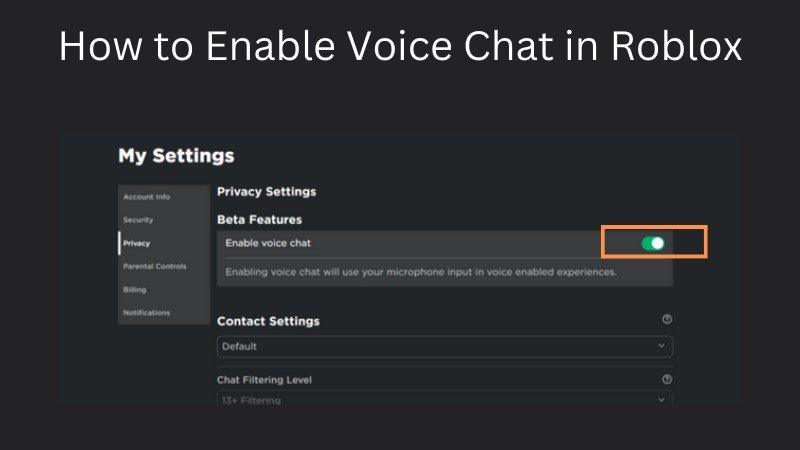


How To Get Voice Chat On Roblox 2026 YouTube . How To TURN ON Fortnite Voice Chat 2026 Enable Mic In Fortnite Xbox . 2026 Roblox Enable Voice Chat Roblox Steps . Roblox Voice Chat Set Up H Ng D N Chi Ti T C I T Voice Chat Tr N Get Voice Chat On Roblox Step 29 . How To Message On Roblox 2026 A Quick Guide
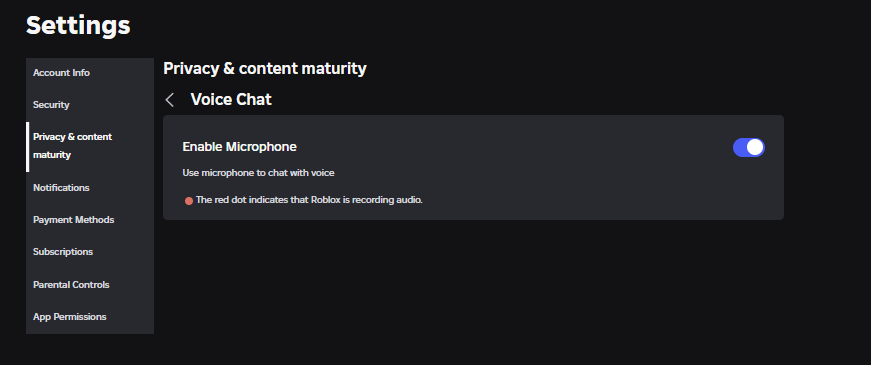


How To Enable Voice Chat In Roblox RoCodes Gg RoCodes 1656 How To Enable Voice Chat In Roblox . How Does The Roblox Push To Talk Button Work Effectively How To Enable Voice Chat In Roblox 2026.webp. How To Turn On Voice Chat In Roblox Xbox H Ng D N Chi Ti T V Nh Ng . How To Enable Voice Chat On Roblox 2026 Roblox Voice Chat Not Working . How To Enable Voice Chat On Roblox Instantly How To Turn On Voice
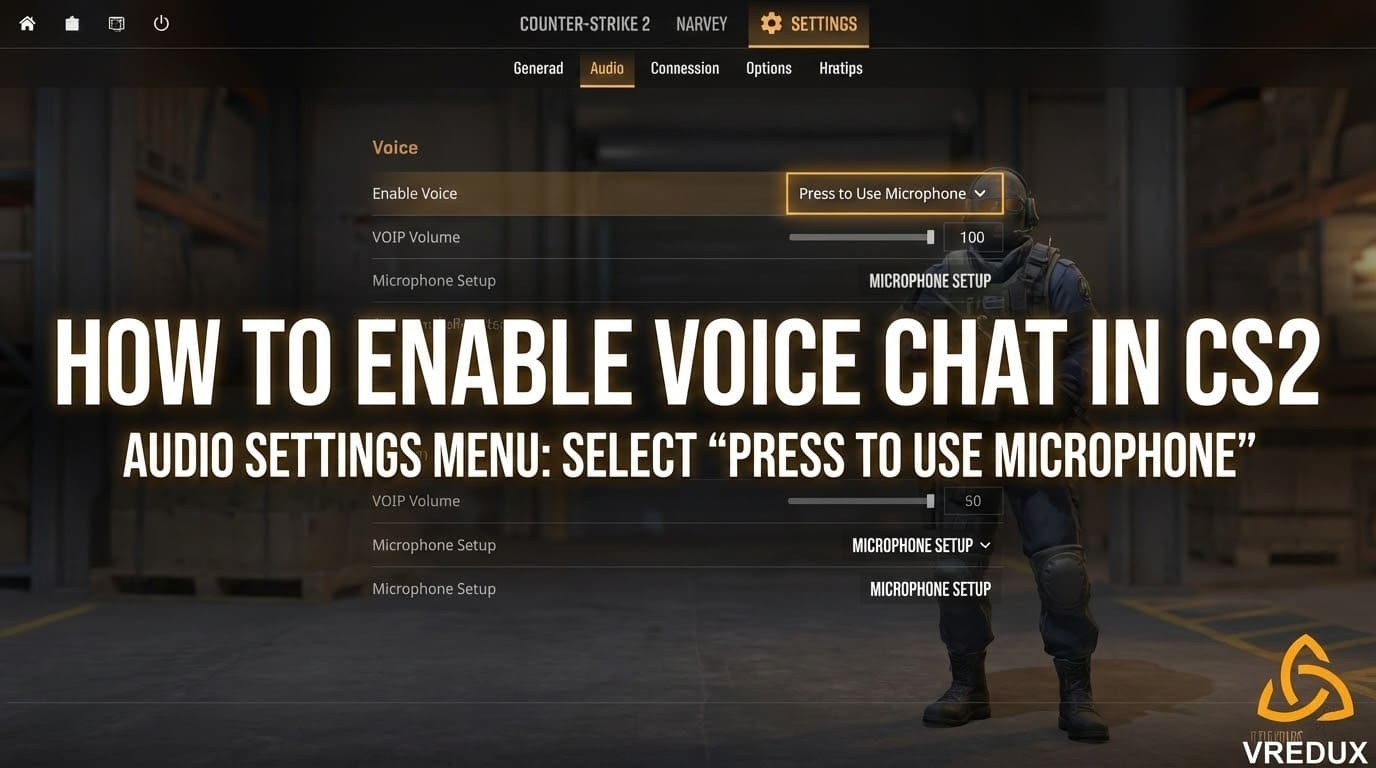


Command To Hear Comms In CS2 CS GO Voice Enable Chat Volume Scale Voice Chat Cs2 Preview . Why Won T My Roblox Voice Chat Work Simple Fixes . How To Enable Voice Chat On Roblox Want To Enable Roblox Voice Chat . How To Turn On Voice Chat In Fortnite 2026 Full Guide YouTube . How To Enable Voice Chat In Roblox 2026 Roblox Voice Chat Working Fix



How To Enable Voice Chat In Roblox 2026 Roblox Voice Chat Working Fix . How To Enable Voice Chat On Roblox Voice Chat Not Working Mobile . How To Enable Voice Chat On Roblox 2026 Get Roblox Voice Chat YouTube . How To Enable Voice Chat On Roblox 2026 Fix Voice Chat Not Working . How To Turn On Voice Chat In Roblox How To Enable Voice Chat In Roblox


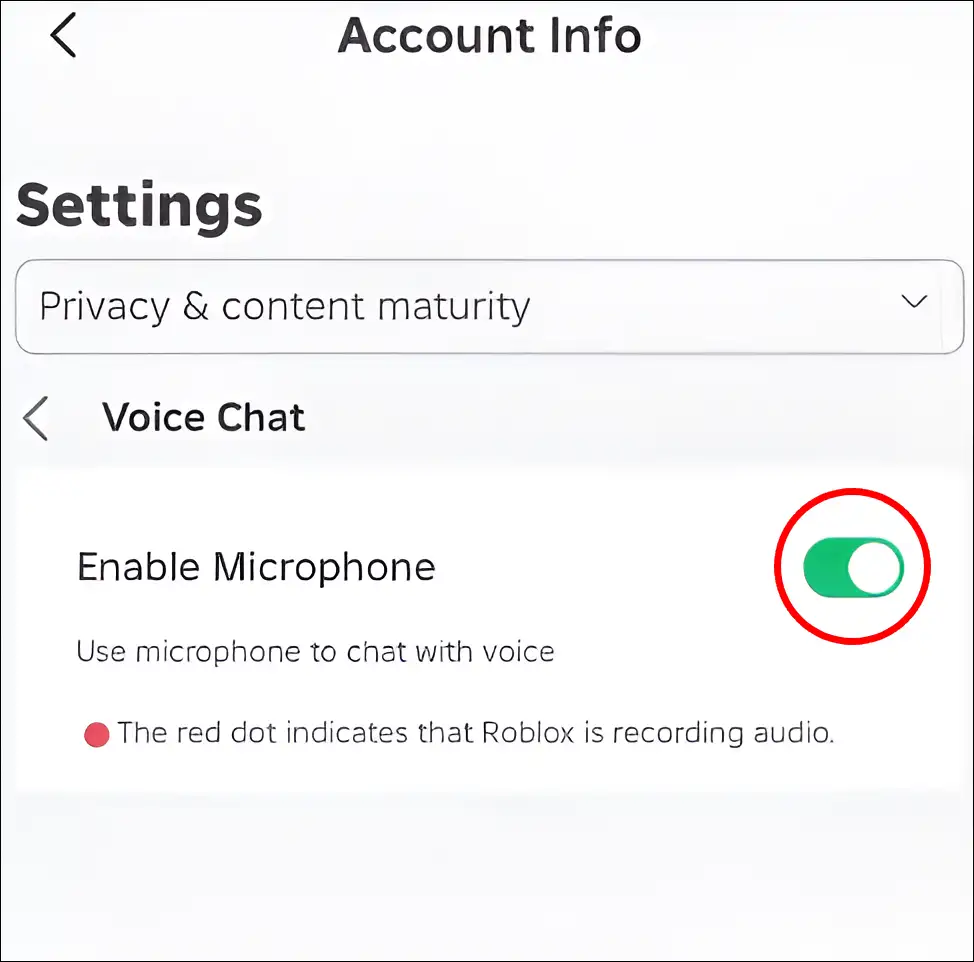
Can 17 Year Olds Use Voice Chat On Roblox Today . How To Enable Voice Chat In Roblox 2026 How To Get Voice Chat On . HOW To ENABLE Roblox VOICE CHAT In 2026 YouTube . HOW To ENABLE VOICE CHAT On ROBLOX In 2026 YouTube . How To Turn On The Microphone On Roblox Voice Chat Enable Roblox App


How To Enable Use Voice Chat In Pls Donate YouTube . HOW To ENABLE VOICE CHAT On ROBLOX In 2026 How To Get Voice Chat Img. How To Enable Voice Chat In Roblox On PC Updated 2026 564x318 1. Roblox On Xbox Can You Chat With Your Voice . How To Enable Voice Chat In Roblox A Quick Guide
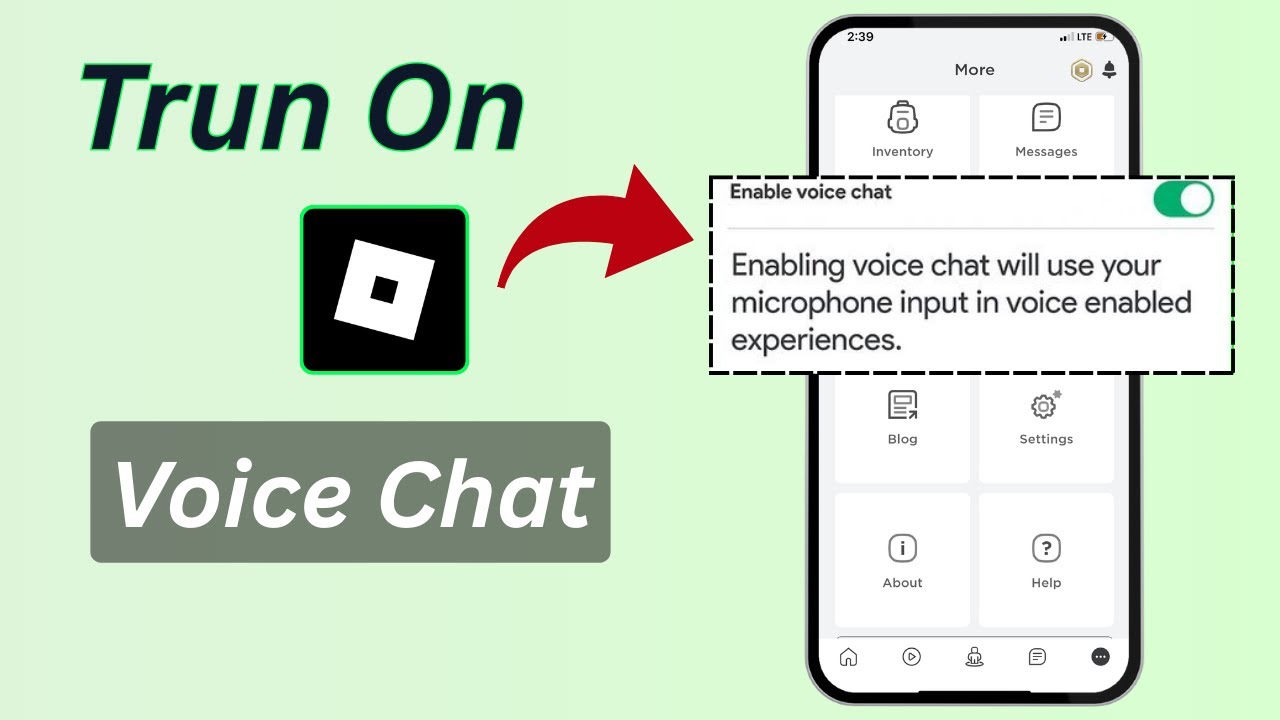


How To Get Voice Chat On Roblox Mobile Enable Voice Chat 2026 YouTube . How To Enable Voice Chat In Roblox 2026 Fix Voice Chat Not Working . How To Get Voice Chat In Roblox 2026 Enable Roblox Voice Chat Step . How To Enable Voice Chat In Roblox 2026 Roblox Voice Chat Working Fix . How To Enable Voice Chat In Roblox 2026 Roblox Voice Chat Working Fix