Dive deep into MouseButton1Up in Roblox scripting, a fundamental event for creating dynamic and interactive game experiences. This comprehensive guide is tailored for busy gamers who want to enhance their Roblox development skills without sacrificing family or work time. Learn how to implement MouseButton1Up for custom UIs, combat systems, and intricate player interactions, ensuring your games are responsive and engaging. Discover practical tips to avoid common scripting pitfalls, optimize performance, and debug effectively. Understand why mastering this input event is crucial for building next-level Roblox games that captivate players and stand out in the bustling Roblox universe, reflecting current trends in interactive entertainment and skill-building.
Q: What does MouseButton1Up mean in Roblox Lua?
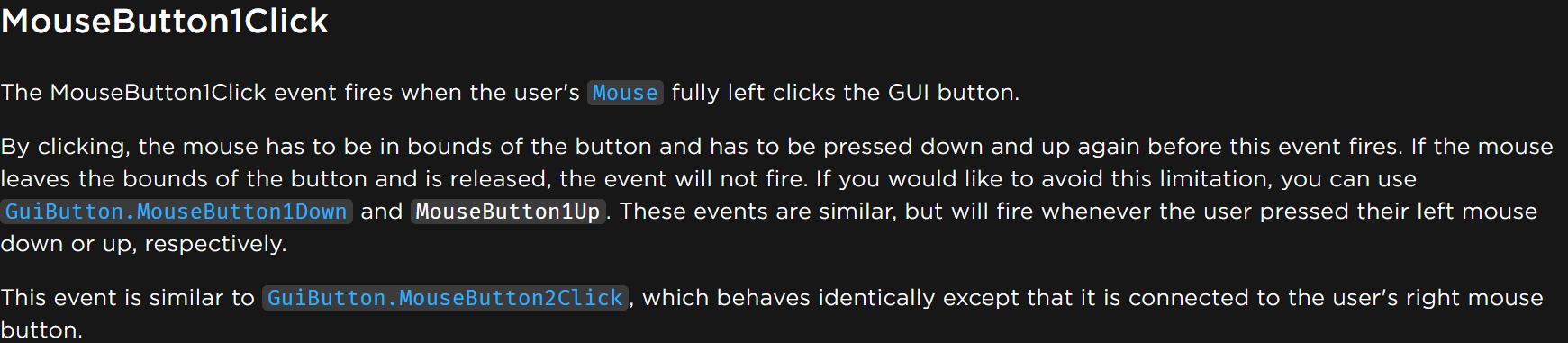
A: MouseButton1Up is a user input event in Roblox's Lua scripting that fires when the player releases the left mouse button (MouseButton1) after pressing it down. It's distinct from MouseButton1Down, which fires when the button is pressed. This event is vital for detecting specific user actions like completing a drag-and-drop, letting go of a charged ability, or confirming a click after a hover interaction, ensuring precise input handling in your game.
Q: How do I script a basic MouseButton1Up event in Roblox Studio?
A: To script a basic MouseButton1Up event, you typically connect a function to a UI element's event. For example, if you have a TextButton named "MyButton" inside a ScreenGui, you would write: script.Parent.MouseButton1Up:Connect(function() print("Button released!") end). This connects an anonymous function to the MouseButton1Up event of the button, executing the code inside when the left mouse button is released over that specific UI element. Ensure the script is a LocalScript within the UI.
Q: Why use MouseButton1Up instead of MouseButton1Down for game actions?
A: Using MouseButton1Up offers more precise control for actions that require a "release" confirmation, like firing a charged weapon, dropping an item in an inventory, or finalizing a drawn shape. MouseButton1Down is for initiating an action, while MouseButton1Up confirms or completes it, allowing for dynamic interactions based on the duration of the press or where the mouse is upon release.
Q: Can MouseButton1Up be used for drag-and-drop functionality in Roblox?
A: Absolutely! MouseButton1Up is foundational for drag-and-drop systems. You initiate the drag on MouseButton1Down, track the object's movement on Mouse.Move, and then finalize the drop action using MouseButton1Up. This allows players to precisely position items, making for intuitive and engaging UI interactions crucial for many modern Roblox games and appreciated by busy gamers.
Q: Does MouseButton1Up work on mobile devices in Roblox?
A: Yes, MouseButton1Up works seamlessly with mobile input in Roblox. When a player lifts their finger from a UI element after a touch, it triggers the MouseButton1Up event. Roblox's cross-platform design handles this translation automatically, meaning your mouse-based UI logic often functions correctly for mobile touchscreens without additional separate scripting for basic interactions.
Q: What common issues might I face when using MouseButton1Up?
A: Common issues include the event not firing if the mouse is released off the UI element, conflicts with other UI blocking input (ZIndex issues), or "ghost clicks" from rapid input. Debugging often involves checking if the script is a LocalScript, verifying UI element properties like Visible and Active, using print statements to trace execution, and ensuring proper debouncing for rapid actions.
Q: How can I make my MouseButton1Up events more performant in Roblox?
A: To optimize MouseButton1Up performance, connect events only to active UI elements and disconnect them when not needed. Keep the logic within the event handler lean, avoiding heavy computations. Implement debouncing for actions that could be triggered too frequently. Efficient scripting ensures your game remains smooth and responsive, a key factor for adult gamers with limited play time.
In the vibrant, ever-expanding universe of Roblox, creating truly engaging and responsive games is key to attracting and retaining players. For many of us balancing gaming with life's demands – jobs, families, and everyday responsibilities – our gaming time is precious. We seek relaxation, fun, and the satisfaction of building something cool, even if it's in short bursts. That's why understanding core scripting elements like MouseButton1Up roblox is so important; it unlocks a world of interactive possibilities without demanding endless hours of complex debugging.
US gamers, comprising a significant portion of the global gaming community, spend an average of 10+ hours a week playing. A staggering 87% game regularly, often looking for experiences that offer both depth and ease of entry. They value well-optimized, social, and skill-building games. The common pain point? Frustration with unresponsive controls or unclear player feedback. This guide aims to alleviate that, helping you master MouseButton1Up to craft buttery-smooth interactions in your Roblox creations. Whether you're enhancing a combat system, building a custom inventory UI, or designing an intricate puzzle, knowing when a player releases their mouse button is a game-changer. Let's dive into making your Roblox games not just functional, but truly dynamic and player-friendly.
What Exactly Is MouseButton1Up in Roblox Scripting?
MouseButton1Up is a fundamental event in Roblox's Luau scripting language that detects when a player releases their primary mouse button (typically the left button) after having pressed it down. Unlike events that fire immediately on press, MouseButton1Up specifically waits for the button to be lifted. This distinction is crucial for scenarios where the duration of a press, or the precise moment of release, carries specific game logic. Think of it as the 'finishing touch' to a player's interaction with a UI element or an in-game object.
Why Is MouseButton1Up Crucial for Interactive Roblox Games?
This event provides a level of precision and control over player input that other events might miss. For busy adult gamers who value efficient gameplay and clear feedback, it's indispensable. It allows developers to create sophisticated mechanics such as: holding to charge an ability and releasing to fire, drag-and-drop inventory systems, or even custom click-and-hold interactions where an action only confirms upon release. Without MouseButton1Up, many advanced interactive experiences would feel clunky or impossible to implement smoothly, directly impacting the fun and skill-building aspects players seek.
How Do I Implement a Basic MouseButton1Up Event in Roblox Studio?
Implementing MouseButton1Up is straightforward, typically done with a LocalScript within the UI element you want to make interactive. Here's a common pattern:
Identify your UI element: Locate the
TextButton,ImageButton, or other clickable GUI element you wish to use.Create a LocalScript: Insert a
LocalScriptas a child of your UI element.Connect the event: Use the
:Connect()method to link a function to theMouseButton1Upevent.
Example Luau code:local button = script.Parentbutton.MouseButton1Up:Connect(function() print("Mouse button 1 was released on the button!") -- Add your game logic here, e.g., trigger an action, close a UI, etc.end)
This simple script will print a message to the output whenever the player releases their left mouse button while their cursor is over the button.
What Are Some Advanced Use Cases for MouseButton1Up Beyond Simple Clicks?
MouseButton1Up truly shines in complex interactions:
Drag-and-Drop Systems: Start dragging an item with
MouseButton1Down, track its position withMouse.Move, and drop it withMouseButton1Up.Charge-Up Abilities: A player holds
MouseButton1Downto charge a spell or attack, and its power or trajectory is determined by when they releaseMouseButton1Up.Precise Drawing/Building Tools: Begin drawing a line or placing a structure on
MouseButton1Downand finalize it onMouseButton1Up, allowing for real-time previewing.UI Confirmation: Prevent accidental clicks by requiring a short press-and-release, or confirm an action only if the mouse is still over the intended target on release.
These applications add depth, control, and a satisfying feel to player interactions, which is essential for engaging the average gamer who enjoys skill-building.
How Does MouseButton1Up Differ from MouseButton1Down or Activated?
Understanding the nuances between these events is critical for robust game design:
MouseButton1Down: Fires the instant the left mouse button is pressed. Good for initiating actions like picking up an item or starting a charge.MouseButton1Up: Fires the instant the left mouse button is released. Perfect for confirming actions, dropping items, or executing charged abilities.Activated: This event is more abstract and fires when a UI element is 'activated' by any input method – left-click, right-click, enter key, gamepad button, or touch. It's great for general button presses but lacks the granular control over mouse-specific press-and-release timing thatMouseButton1Upoffers. For simple button clicks,Activatedis often preferred due to its broad compatibility, but for precise mouse-based interactions,MouseButton1Upis superior.
Choosing the right event depends entirely on the specific player experience you aim to create.
Are There Performance Considerations When Using MouseButton1Up?
Yes, like any event-driven system, performance can be a concern if not managed properly. While MouseButton1Up itself is efficient, connecting many functions to it, or performing computationally intensive tasks within its connected function, can lead to lag. Keep these tips in mind:
Scope your events: Only connect
MouseButton1Uplisteners to UI elements or objects that are actively in use. Disconnect them when no longer needed to prevent memory leaks or unnecessary computations.Optimize internal logic: Ensure the code executed when
MouseButton1Upfires is as lean and efficient as possible. Avoid complex calculations or heavy network requests directly within the event handler.Debounce when necessary: If an action can be triggered too rapidly, implement a debounce system to prevent spamming. This is a common practice for any player input event, ensuring a smoother experience and reducing server load.
Gamers today appreciate smooth performance, especially those juggling life and play, making optimization a top priority.
How Can I Debug MouseButton1Up Events If They're Not Firing?
Debugging input events like MouseButton1Up can be tricky. Here’s a troubleshooting checklist:
Is the script a LocalScript? UI interactions are typically handled client-side. Ensure your script is a
LocalScript, usually parented to the GUI element orStarterPlayerScripts.Is the UI element visible and enabled? Hidden or disabled UI elements won't register input.
Is the mouse actually over the element?
MouseButton1Upon a GUI element only fires if the release occurs *over that element*. If the button is pressed on the element, and then the mouse is dragged off before releasing, the event won't fire for that element. Consider usingUserInputService.InputEndedfor broader mouse release detection.Check for blocking UI: Other GUI elements with
Active = trueor higherZIndexmight be unintentionally blocking input to your target element.Use print statements: Sprinkle
print("Event fired!")inside your connected function to confirm if the event handler is even being reached.Inspect the Output window: Look for any error messages in Roblox Studio's Output window.
These steps often quickly pinpoint the issue, getting you back to building fun games.
Can MouseButton1Up Be Used with Mobile Input in Roblox?
Absolutely! Roblox is built for cross-platform compatibility, and MouseButton1Up has a direct equivalent for touch input on mobile devices. When a player lifts their finger after touching a UI element, it will trigger the MouseButton1Up event, provided the touch behaves like a primary "click." This seamless integration means you don't typically need separate code paths for mouse and touch for basic UI interactions, simplifying development for games popular on mobile – a dominant platform for US gamers. However, for more advanced multi-touch gestures, you'd use UserInputService events like InputEnded.
What Are Best Practices for Scripting MouseButton1Up for Robust Games?
Clear Intent: Use
MouseButton1Upwhen the *release* action is significant. For simple instant clicks,Activatedmight be sufficient and more robust across input types.Error Handling: Always account for unexpected scenarios. For example, what if a player releases the mouse outside the intended target area? Implement logic to handle these cases gracefully.
Debouncing: As mentioned, prevent rapid, unintended repeated actions by implementing simple debounce mechanisms (e.g., a cooldown timer).
User Feedback: Provide visual or auditory feedback when an action is initiated (on
MouseButton1Down) and confirmed (onMouseButton1Up). This improves the user experience significantly, making the game feel responsive.Modularity: Keep your event handlers clean and focused. Instead of putting all game logic directly in the
MouseButton1Upfunction, call other dedicated functions to perform specific tasks. This makes your code easier to read, debug, and maintain.Test on Multiple Devices: Always test your
MouseButton1Upinteractions on both PC and mobile to ensure consistent behavior.
By following these best practices, you ensure your games offer a polished experience that busy gamers will appreciate, fitting seamlessly into their limited playtimes.
How Do I Prevent "Ghost Clicks" or Unintended MouseButton1Up Triggers?
Ghost clicks or unintended triggers often stem from improper event handling or UI layering. Here’s how to tackle them:
Check ZIndex: Ensure your UI elements have correct
ZIndexvalues. Elements with a higherZIndexappear on top and can block interaction with elements beneath them.Verify
ActiveProperty: For GUI objects, ifActive = true, they will consume mouse input. Sometimes, inactive transparent UIs can still block clicks ifActiveis true. SetActive = falsefor purely decorative UIs.Precise Target Check: If using
UserInputService.InputEnded(which fires globally on mouse release) for custom drag-and-drop, always verify if the mouse cursor is currently over the *intended* drop target before executing the final action.Debounce and Cooldowns: Implement cooldowns for actions triggered by
MouseButton1Upto prevent rapid re-activation from slight mouse jitters or accidental double-releases.Contextual Logic: Only allow
MouseButton1Upactions to fire if the game is in the correct state (e.g., don't allow a "fire weapon" action if the player is in a menu).
Preventing these issues ensures a smooth, frustration-free experience for players who value their gaming time.
Conclusion
Mastering MouseButton1Up roblox is a powerful step towards creating more dynamic, intuitive, and engaging experiences for your players. For the average gamer juggling life's responsibilities, a game that feels responsive and offers precise control is immensely satisfying. By leveraging this event, you can build everything from intricate UIs to fluid combat mechanics, ensuring your creations stand out. Remember, the goal isn't just to make games, but to craft memorable, enjoyable escapes and skill-building opportunities. Now that you're equipped with this knowledge, go forth and make something incredible!
What's your biggest challenge when scripting player input in Roblox? Share your thoughts below!
FAQ Section
Is MouseButton1Up a client-side or server-side event?
MouseButton1Up is primarily a client-side event. It detects user input directly on the player's device, making it highly responsive for UI and local interactions. Any server-side changes or validations should be handled by sending a remote event from the client to the server after the MouseButton1Up event fires.
Can I detect MouseButton1Up on a 3D part in the workspace?
Yes, you can detect MouseButton1Up on a 3D part by using a ClickDetector. The ClickDetector.MouseClick event actually fires on MouseButton1Up after a successful click. For more advanced, custom 3D interactions, you might use UserInputService.InputEnded in combination with Mouse.Target.
What if a player presses MouseButton1 and drags the mouse off the button before releasing?
If a player presses MouseButton1 on a GUI element and then drags their mouse off the element before releasing, the MouseButton1Up event on *that specific GUI element* will generally not fire. The event only fires if the mouse cursor is still over the element when the button is released. For broader detection, consider UserInputService.InputEnded.
How important is MouseButton1Up for mobile gamers?
MouseButton1Up is highly important for mobile gamers as it directly translates to the "finger lift" action after a touch on a UI element. Given the prevalence of mobile gaming (a huge trend this month!), ensuring your games respond well to touch input through events like this is crucial for cross-platform success and reaching a wider audience.
Does MouseButton1Up work with a trackpad or gamepad input?
While MouseButton1Up specifically refers to a mouse button, Roblox's input abstraction means trackpad clicks will often trigger it. For gamepad input, UI elements typically use the Activated event which handles various input sources, making it more generalized. For specific gamepad button releases, you'd use UserInputService.InputEnded with the corresponding KeyCode.
Essential for Roblox game interactivity, crucial for detecting mouse button releases, enables custom UI elements, vital for precise combat mechanics, optimizes player input handling, fundamental for drag-and-drop features, critical for advanced scripting techniques, supports mobile touch input interpretation, improves game responsiveness and user experience.
34



Roblox Studio Down Ne I E Yarar YouTube . How To Add People Roblox Easily Your 2026 Guide . Definitive Guide To Roblox 2026 TM 07169 Definitive Guide To Roblox 2026 . How To Update Roblox In 2026 Fix Error Code 280 On PC Mobile Xbox Roblox Update It.webp. What Is The Roblox Assessment Experience On Reddit Oar2




A Mother Or Father S Information To Utilizing Roblox In 2026 Ivugangingo 2026 Parental Guide For Roblox Usage UnicMinds . Roblox Me Command What Does It Actually Do NoFilter. Who Is Mgigi203 On Roblox And What Are They Doing In 2026 . What Is Garhorse Roblox And Why Is It Popular In 2026 Updated Roblox. Roblox 2026 Insider Reveals Platform Evolution Safety 4000x4000bb


How To Publish A Game On Roblox In 2026 Roblox YouTube . How To Get In Roblox And What You Need To Know Roblox Slap Tower Codes . WOW The 2026 Roblox Logo Shocks All Players YouTube Maxres2 . Choso Flipping Experience Roblox Daftar Kode Februari 2026 Solusi Choso Flipping Experience Roblox Daftar Kode Februari 2026 Solusi Kalau Gagal B3f1ef3d7a . Map Roblox Yang Viral Dan Wajib Di Coba Di Tahun 2026 EBelanja TopUp Map Roblox Yang Viral Dan Wajib Di Coba Di Tahun 2026 840235


:quality(30):format(webp):focal(0.5x0.5:0.5x0.5)/pontianak/foto/bank/originals/VIRAL-Alasan-Pemerintah-Blokir-Roblox-di-Indonesia.jpg)

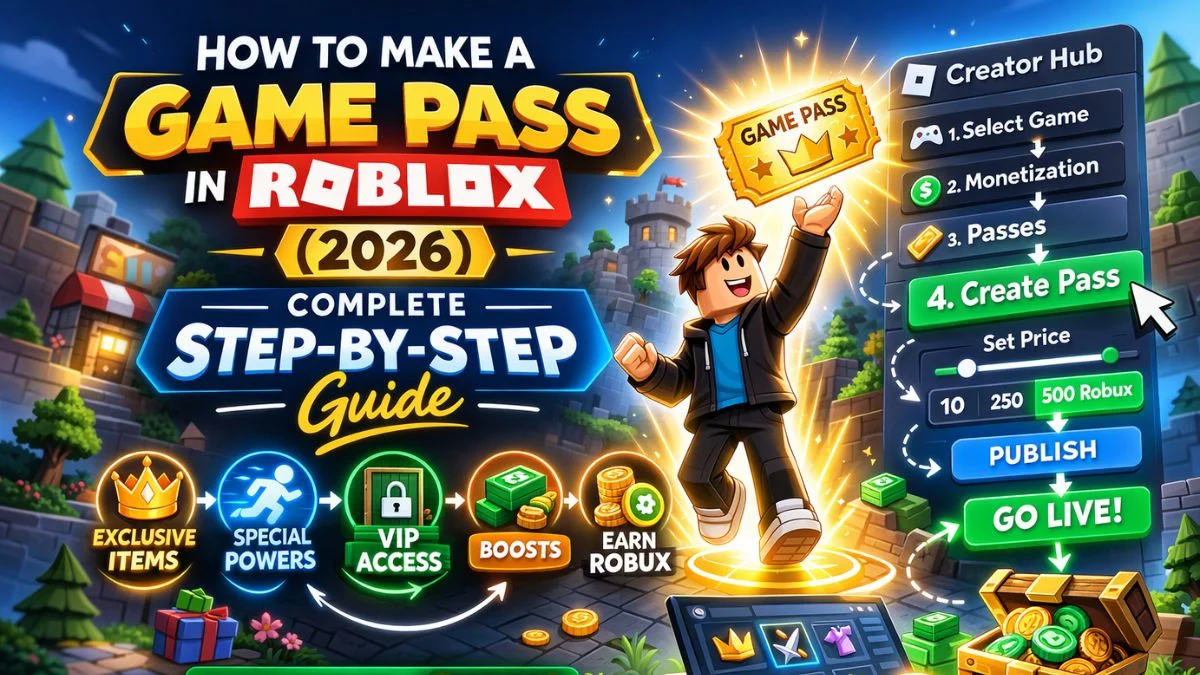
Exploring Meaxico Roblox Fun What Awaits You In 2026 Oar2 . How To Make A Game Pass In Roblox 2026 Step By Step Guide Game Pass Roblox.webp. Roblox 2026 Roblox 2d47d8d8 Ef06 4b99 8a10 . Aturan Baru Roblox 2026 Hapus Fitur Chat Cara Lewat VIRAL Alasan Pemerintah Blokir Roblox Di Indonesia . How To Message On Roblox 2026 A Quick Guide

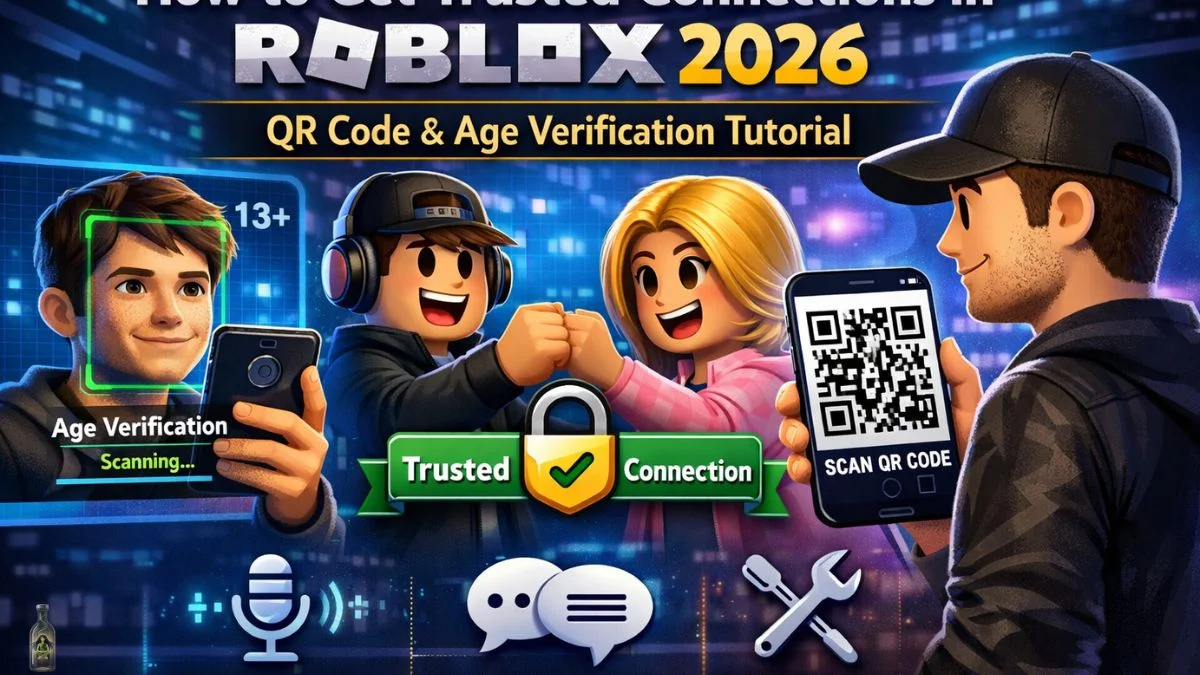

Why Is My Button Not Working Scripting Support Developer Forum . Auto GG Gift Skin Pancing Item OP Fish It Roblox 2026 Crescendo Image. 15 Game Roblox Horror Terbaik 2026 15 Game Roblox Horror Terbaik 2026 Paling Seram And Bikin Deg Degan 7f944699ce . How To Get Trusted Connections In Roblox 2026 Full Tutorial Roblox Trusted. Prepare For 2026 With Roblox Trends TikTok Img

5 Roblox 2026 Image. What Is Bart Ender In Roblox And Why Does He Matter . Roblox At GDC 2026 Where To Find Us All Week Roblox. Is Roblox Getting Shut Down In 2026 The Real Truth Behind All Those Is Roblox Getting Shut Down In 2026 1024x683 . Roblox At GDC 2026 Where To Find Us All Week Roblox


Roblox R6 Explained What Does It Really Mean Oar2 . How To Make Tap And Hold Button Scripting Support Developer Forum . Roblox Japanese Supermarket Simulator Codes February 2026 Full Guide Roblox Fistborn Codes . Roblox 2026 Toons Universe Roblox Promo Codes Discord