Navigating Roblox's vibrant worlds means interacting with a massive community, and for busy adults who balance jobs, families, and limited gaming time, managing your chat experience is crucial. This comprehensive guide dives deep into Roblox chat settings, offering practical solutions to common pain points. Discover how to enhance your privacy, ensure a safer environment for younger players, and customize your communication for a more enjoyable, stress-free gaming session. We address everything from basic chat access to advanced filtering and parental controls, reflecting the latest trends in social gaming and platform updates. Optimize your interaction, protect your peace, and make every moment in Roblox count, whether you're building, exploring, or just unwinding with friends after a long day. This resource ensures you stay informed and empowered, helping you balance your digital life with real-world commitments and get the most value from your gaming hours.
How do I find and adjust my Roblox chat settings?
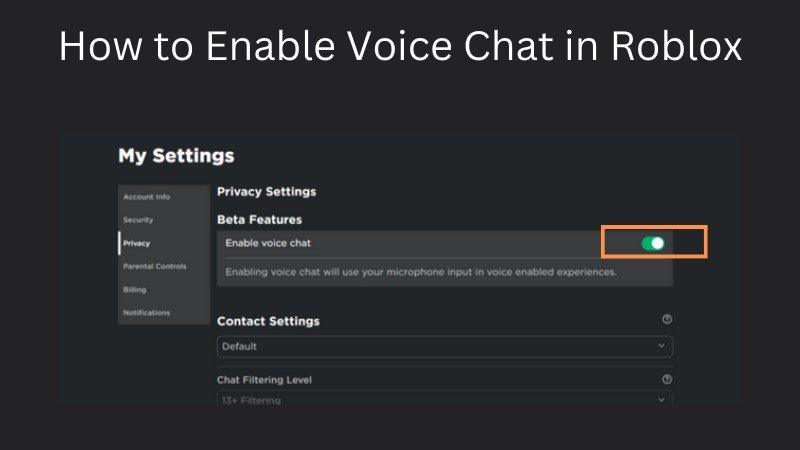
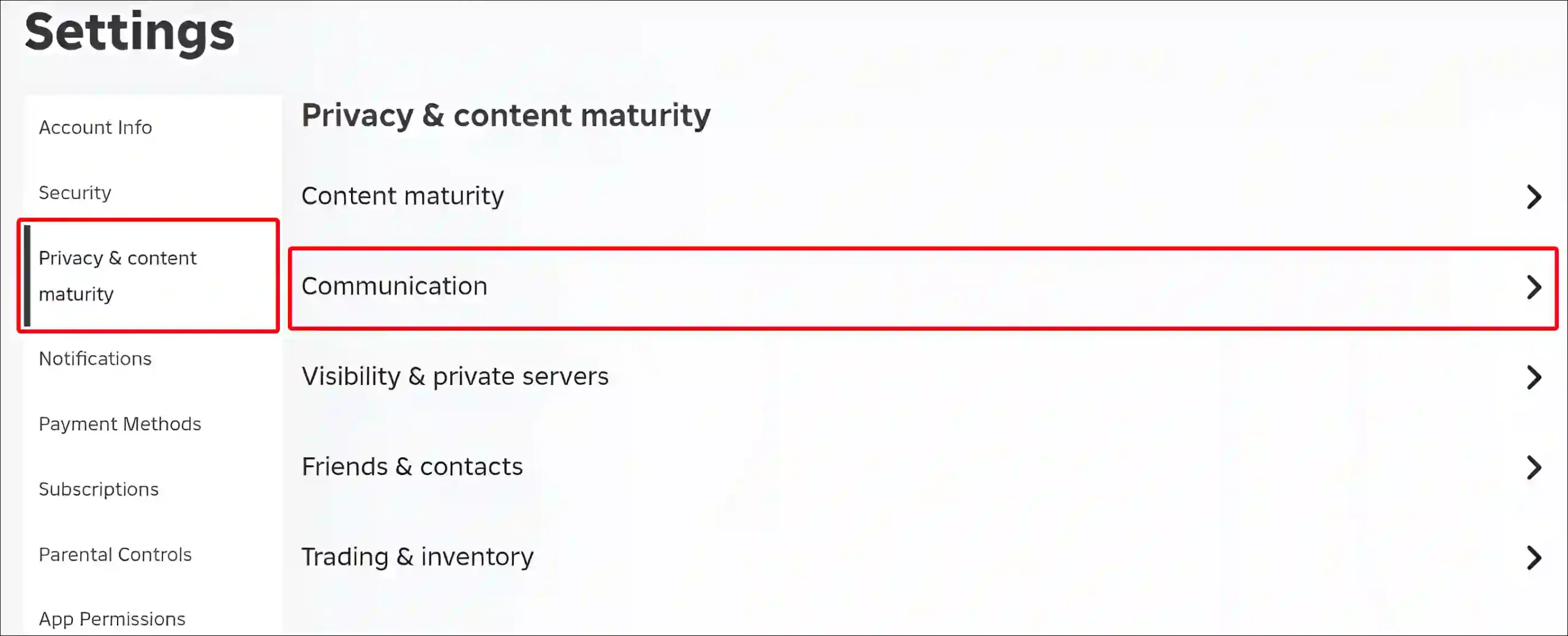
Accessing your Roblox chat settings is straightforward and typically done through your account's privacy settings. On the Roblox website, click the gear icon in the top right corner and select "Settings". From there, navigate to the "Privacy" tab. This section allows you to manage who can chat with you, who can send you messages, and various other communication preferences that impact your in-game chat experience. For in-game chat visibility, you might also find options within the game's specific settings menu, often accessed by pressing the ESC key and looking for a settings or options menu. Regularly reviewing these settings ensures your communication preferences align with your current needs and comfort level.
Can I disable the chat function entirely in Roblox?
Yes, while Roblox promotes social interaction, you can effectively disable the chat function for your account or for accounts under parental control. For adult users, navigating to the "Privacy" settings and adjusting "Who can chat with me in-game?" to "No one" will largely prevent unsolicited messages. For younger players, parental controls offer a more robust solution. By verifying an email and setting up account restrictions, parents can turn off in-game chat completely, limiting communication to only Best Friends or blocking it entirely. This is a critical feature for busy parents who want to ensure a safe environment without constant supervision, aligning with the growing trend among US gamers (many of whom are parents) to balance family safety with digital engagement.
What is Roblox's chat filter and how effective is it?
Roblox employs an advanced chat filtering system designed to remove inappropriate content, personal information, and potentially harmful language, making it safe for all ages. This filter is constantly updated to catch new slang and evolving threats. It works by censoring words, phrases, and even numbers that could be used to circumvent safety measures. While highly effective, no filter is 100% foolproof, especially with creative users attempting to bypass it. However, for the vast majority of interactions, the system provides a robust layer of protection, crucial for the millions of users who rely on Roblox for social gaming. This ongoing commitment to safety is vital for maintaining a welcoming environment, reflecting the high value US gamers place on secure online spaces.
How do I manage who can chat with me in Roblox?
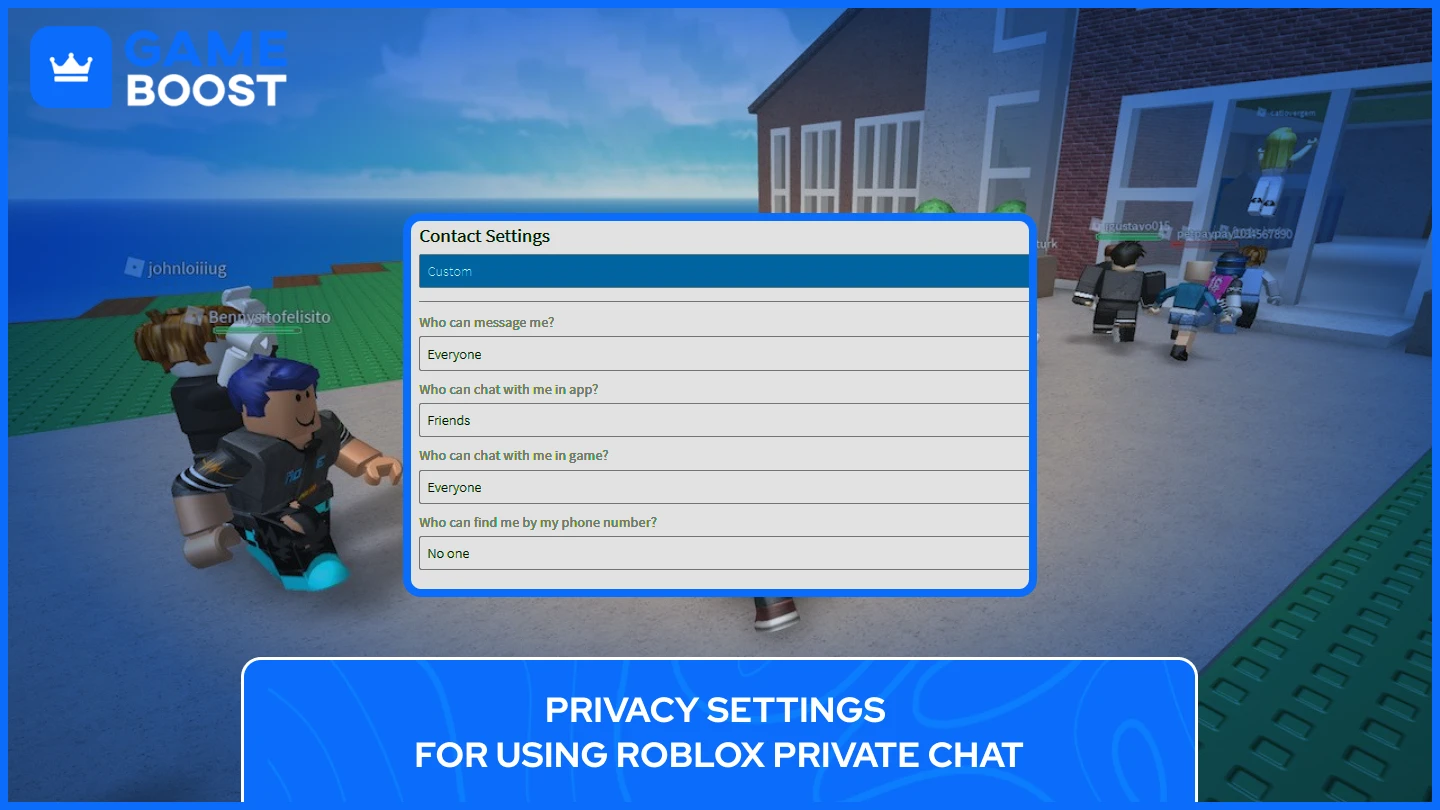
Managing who can chat with you in Roblox is simple and found within your account's "Privacy" settings. Under the "Other Settings" section, you'll find options like "Who can chat with me in-game?" and "Who can message me?". You can choose from "Everyone", "Friends", "Friends and Users I Follow", or "No one". Selecting "No one" effectively turns off all public chat interactions. For more granular control, linking your account to a verified email or phone number can unlock additional parental control features, allowing for more restrictive settings, especially helpful if you're managing a child's account. This level of control empowers users to tailor their social experience, a key desire for adult gamers who value focused, intentional interactions.
What are the best parental control settings for Roblox chat?
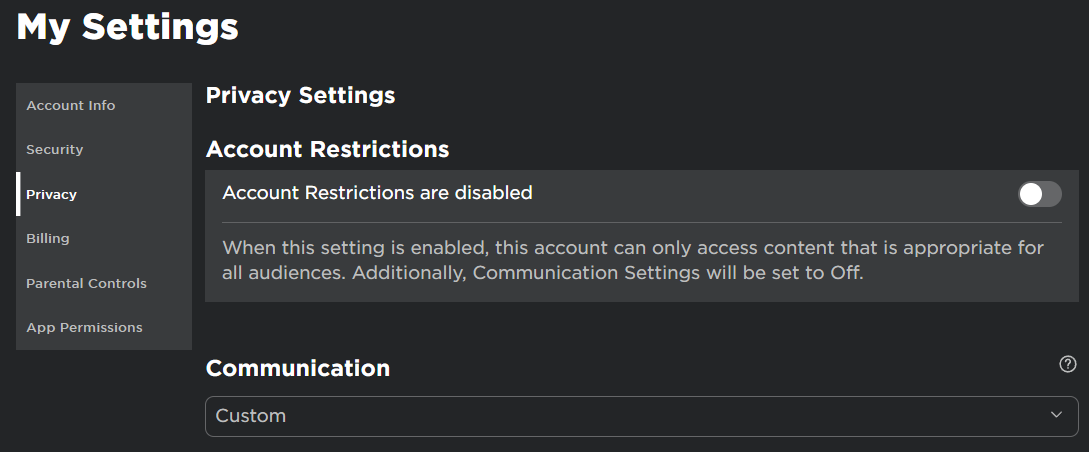
The best parental control settings for Roblox chat involve a multi-layered approach. First, verify your email on the parent's account and set up an Account PIN to prevent unauthorized changes. Next, navigate to the "Privacy" tab and under "Other Settings", adjust "Who can chat with me in-game?" and "Who can message me?" to "No one" or "Friends" as appropriate. For younger children, completely disabling chat is often recommended. Roblox also offers an "Account Restrictions" mode, which limits playable games to a curated list suitable for all ages and blocks all chat entirely. Regularly reviewing these settings and discussing online safety with your child is paramount, reflecting the proactive approach many US parents take in managing their children's digital lives.
Can I customize the appearance of Roblox chat?
While Roblox provides some basic customization options, extensive visual modification of the chat window itself is generally not available directly through the platform's settings. You can usually adjust the chat bubble visibility (on or off) within a specific game's settings menu, which is often accessed by pressing the Escape key. Some individual Roblox games or experiences might offer their own unique chat display customizations within their specific UI, but these are game-dependent rather than global Roblox settings. The primary focus of Roblox's global chat settings remains on privacy, safety, and functionality, ensuring a consistent and secure communication experience across its vast metaverse.
What steps should I take if I encounter inappropriate chat in Roblox?
If you encounter inappropriate chat in Roblox, the most crucial step is to report the user immediately. Roblox provides an easy-to-use in-game reporting tool. Simply click on the user's name in the chat or on their avatar in the game, and an option to "Report" will appear. Select the relevant reason (e.g., "Inappropriate Chat") and provide specific details. Roblox's moderation team reviews these reports promptly. Additionally, you can block the user to prevent further communication. It's important to remember that reporting helps keep the platform safe for everyone, especially given the platform's diverse user base where many US gamers prioritize a respectful and secure online environment.
For many US gamers, gaming isn't just a hobby; it's a vital escape, a way to connect, or a chance to unwind after juggling work, family, and life's endless demands. You've got precious limited time, and the last thing you want is a chaotic or uncomfortable online experience disrupting your peace. Roblox, with its immense universe of user-created games and social hubs, offers incredible opportunities for connection and creativity. Yet, its chat system, while a cornerstone of its social appeal, can sometimes feel overwhelming or even unsafe if not properly managed. It's a common pain point: how do you maintain a fun, secure, and personalized social experience in a game loved by millions, including many younger players?
You're not alone in seeking better control. Recent US gaming trends show that 87% of gamers regularly engage, often for 10+ hours a week, with mobile gaming dominating, and social interaction being a primary driver. For adults, this means finding efficient ways to enjoy these platforms without constant monitoring or unwanted intrusions. This guide is your no-nonsense resource for mastering your chat settings in Roblox. We'll walk you through every essential option, from privacy controls and robust filtering to parental management and customization tips, ensuring your Roblox chat experience is exactly what you need it to be: fun, safe, and entirely on your terms. Let's reclaim your gaming peace.
How Do I Access Chat Settings in Roblox?
Accessing your chat settings in Roblox is relatively straightforward, though the exact options can be split between your overall account settings and in-game menus. To start, log into your Roblox account on the website or through the app. You'll typically find a gear icon in the top right corner of the screen. Click on this icon and select "Settings". Once in your settings, look for the "Privacy" tab on the left-hand navigation pane. This is where the majority of your global chat interaction preferences reside. For specific in-game chat visibility options, you might need to enter a game, press the ESC key, and look for a "Settings" or "Options" menu within that particular experience.
Understanding where these settings are located is the first step towards taking control. Many adult gamers, especially those balancing busy schedules, appreciate a direct path to managing their digital environment efficiently. Regularly checking these settings, perhaps monthly, ensures they remain aligned with your preferences and any new platform updates. Roblox consistently refines its user interface, so knowing this general pathway will always lead you to the right place for communication management.
Can I Disable Chat Entirely in Roblox?
Yes, you can effectively disable most chat functions in Roblox, offering a great solution for those who prefer minimal social interaction or for parents managing children's accounts. For an adult user who wants to limit chat, navigate to your "Privacy" settings. Under the "Other Settings" section, you'll find options like "Who can chat with me in-game?" and "Who can message me?". By selecting "No one" for both of these, you significantly reduce unsolicited communication.
For children's accounts, parental controls offer a more robust solution. After verifying your email and setting up an Account PIN, you can completely restrict chat. In the "Privacy" settings, selecting "No one" for chat options will block interactions. Additionally, Roblox provides an "Account Restrictions" mode. This mode not only limits playable games to a pre-approved list but also completely disables all in-game chat and messaging, providing an iron-clad safety net. This feature is invaluable for busy parents among US gamers who prioritize a secure online space for their kids without constant supervision, allowing them to confidently balance work and family life.
How Does Roblox's Chat Filter Work to Keep Me Safe?
Roblox employs a sophisticated chat filtering system designed to maintain a safe and positive environment for its incredibly diverse user base. This filter is constantly updated by a dedicated team and leverages advanced machine learning to detect and block inappropriate content, personal identifiable information (PII) like phone numbers or addresses, and potentially harmful language. It works across all forms of in-game text communication, from public chat to private messages.
The filter is designed to be proactive, aiming to catch undesirable content before it even appears on your screen. It censors specific words, phrases, and even certain number combinations that might be used to bypass safety measures. While no automated system is 100% perfect—creative users can always attempt to circumvent filters—Roblox's system is remarkably effective and is a cornerstone of its commitment to user safety. For adult gamers and parents, understanding the strength of this filter provides reassurance, knowing that the platform is actively working to minimize exposure to harmful content, a key factor in choosing a social gaming platform in 2026.
What Privacy Options Are Available for My Roblox Chat?
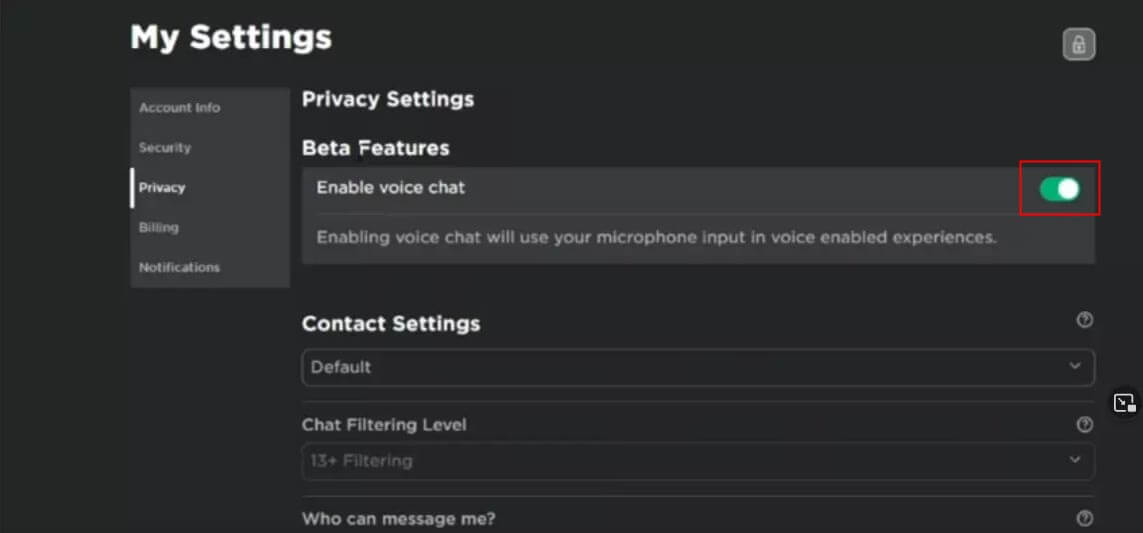
Roblox offers several crucial privacy options within its chat settings, allowing you to fine-tune who can interact with you. These controls are located in your account's "Privacy" tab. You'll find distinct settings for:
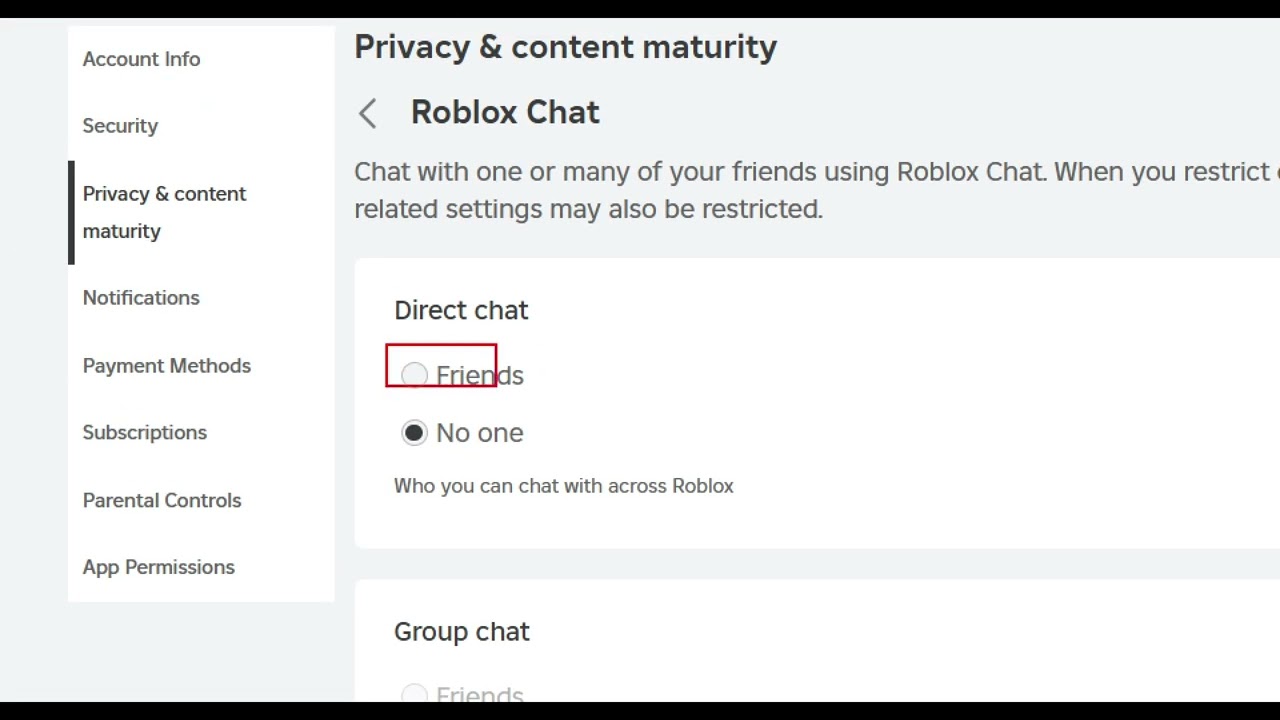
Who can chat with me in-game? This controls public chat interactions within games. Your choices typically include "Everyone," "Friends," or "No one." Choosing "Friends" or "No one" significantly reduces exposure to unsolicited messages from strangers.
Who can message me? This governs private messages sent directly to your Roblox inbox. Similar options exist: "Everyone," "Friends," or "No one." If you prefer to only communicate with people you know, selecting "Friends" is ideal.
Who can invite me to private servers? This determines who can send you invitations to join their private game servers, which often involve chat. Restricting this to "Friends" can prevent unwanted requests and ensure you only join games with trusted individuals.
For adult gamers, these granular controls are essential for curating your online social circle and ensuring your gaming time is spent with people you choose. This level of control directly addresses the pain point of unwanted social spam, allowing you to relax and enjoy the social aspects of Roblox on your own terms.
How Can Parents Manage Chat for Their Children on Roblox?
Managing chat for children on Roblox is a top priority for many adult gamers who are also parents. Roblox provides robust parental controls designed to offer peace of mind. Here's how to best utilize them:
Verify Your Email and Set an Account PIN: The first and most crucial step is to verify the parent's email address on the Roblox account and then set up an Account PIN. This PIN prevents unauthorized changes to privacy and spending settings, ensuring that your child cannot override your chosen restrictions.
Adjust Privacy Settings: In the "Privacy" tab (accessible only with the Account PIN), set "Who can chat with me in-game?" and "Who can message me?" to "No one" for younger children, or "Friends" for older kids who have a curated friends list. This drastically limits external communication.
Enable Account Restrictions: For younger or more sensitive children, consider enabling "Account Restrictions." This powerful feature blocks all in-game chat and messaging, and also restricts access to a curated list of age-appropriate games. It's an excellent option for maximum safety, reflecting the cautious approach many US parents take in managing their children's digital exposure.
Monitor and Educate: While settings are vital, ongoing communication with your child about online safety, what to share, and how to report inappropriate behavior is paramount. Regularly review their friends list and discuss their experiences. This combined approach of technical control and open dialogue creates the safest environment.
These features empower parents to confidently allow their children to enjoy Roblox while maintaining a secure and controlled communication environment, a significant advantage for families juggling modern life's complexities.
Can I Customize My Chat Display and Notifications?
While Roblox's global chat settings primarily focus on privacy and safety, there are some limited customization options for chat display and notifications, though they often depend on the specific game you're playing. Unlike some other platforms that offer extensive UI modifications, Roblox prioritizes a consistent and accessible user experience across its vast metaverse.
Generally, within a specific Roblox experience, you can access in-game settings (often by pressing the ESC key). Here, you might find options to:
Toggle Chat Bubbles: Many games allow you to turn chat bubbles (the text appearing above player avatars) on or off, reducing visual clutter if you prefer.
Adjust Chat Window Transparency: Some experiences might offer a slider to adjust how transparent the main chat window is, helping it blend more seamlessly with the game environment.
Sound Notifications: You can often adjust or mute sounds associated with new chat messages, preventing distractions while you're focused on gameplay or other tasks.
It's important to remember that these visual customizations are often game-dependent. The core global chat settings in your account focus on who can contact you, rather than how the chat visually appears. This approach ensures that the fundamental safety and communication features are universally applied, maintaining a consistent experience for millions of users who engage with Roblox on various devices, from PCs to mobile phones, reflecting the mobile dominance in US gaming trends.
What Should I Do If I Encounter Harassment or Inappropriate Chat?
Even with robust filters and privacy settings, sometimes inappropriate behavior or harassment can slip through. Knowing how to react quickly is crucial for maintaining your peace of mind and contributing to a safer community. Roblox provides clear tools for reporting such incidents:
Report the User: The most immediate and effective action is to report the user. In-game, you can typically click on the offending player's name in the chat window, or click directly on their avatar. A menu will appear, offering an option to "Report." Select this, choose the relevant reason (e.g., "Inappropriate Chat," "Harassment"), and provide any specific details about what happened. This report goes directly to Roblox's moderation team for review.
Block the User: After reporting, you should also block the user. This prevents them from communicating with you further, sending messages, or following you into games. You can usually find the "Block" option in the same menu as "Report."
Gather Evidence (Optional but Helpful): While not always necessary, taking a screenshot of the inappropriate chat can be helpful if Roblox's moderation team needs more context. However, do not engage with the harasser; simply report and block.
Do Not Retaliate: Never engage in a back-and-forth or try to "fight fire with fire." This can make the situation worse and could even put your own account at risk. Your best action is always to report and block.
Roblox takes reports of inappropriate behavior seriously, recognizing that a safe environment is essential for player retention and satisfaction. For adult gamers seeking relaxation and fun, knowing these steps ensures you can quickly remove yourself from negative interactions and get back to enjoying your game.
Are There Any Advanced Tips for Optimizing My Roblox Chat Experience?
Beyond the basic settings, a few advanced tips can further refine your Roblox chat experience, especially for busy adult gamers looking to maximize efficiency and enjoyment.
Curate Your Friends List Actively: Regularly review and prune your friends list. A smaller, more trusted circle means fewer unwanted chat invitations and messages, especially if your privacy settings allow only friends to contact you. This reflects the trend of social gaming where quality interactions often trump quantity.
Utilize Discord for Group Play: For highly coordinated or private group play with established friends, consider using external voice chat platforms like Discord alongside Roblox. While Roblox offers in-game text chat, Discord provides superior voice communication, screen sharing, and dedicated channels, reducing reliance on Roblox's in-game text chat for critical communication. Many US gamers already use Discord daily for their gaming communities, integrating seamlessly with their play sessions.
Understand Game-Specific Communication: Some Roblox experiences implement their own custom chat systems or communication tools. For instance, role-playing games might have proximity chat or specialized commands. Taking a moment to read the game's description or tutorial can reveal unique communication features specific to that world, enhancing your immersion and interaction.
Stay Informed on Roblox Updates: Roblox frequently rolls out updates, sometimes including new chat features or changes to existing privacy controls. Following official Roblox news channels or reputable gaming news sites can keep you informed, ensuring you're always using the latest tools to manage your experience.
By implementing these tips, you can transform your Roblox chat experience from potentially chaotic to perfectly tailored, allowing you to fully enjoy the social and creative aspects of the platform without unwanted interruptions, optimizing your valuable gaming time.
FAQ Section
Q: What happens if I set "Who can chat with me in-game?" to "No one"?
A: If you set "Who can chat with me in-game?" to "No one" in your Privacy settings, you will not see messages from other players in public game chat, and they will not be able to send you direct chat messages while in a game. You can still chat if you initiate it with friends who have their settings open to you.
Q: Does disabling chat affect private messages in Roblox?
A: Disabling "Who can chat with me in-game?" affects public and in-game direct messages. However, there's a separate setting, "Who can message me?", that controls private messages sent to your Roblox inbox. For complete silence, set both to "No one."
Q: Can I turn off chat bubbles above players' heads?
A: Yes, in many individual Roblox games, you can turn off chat bubbles. This option is usually found within the specific game's settings menu (often accessed by pressing ESC) rather than in your global Roblox account settings. It helps reduce visual clutter.
Q: If I block a player, can they still see my game activity?
A: When you block a player on Roblox, they cannot chat with you, message you, or see your game activity or profile. They are essentially removed from your social sphere on the platform, ensuring privacy and preventing further interaction.
Q: How often should I check my Roblox chat settings?
A: It's a good practice to review your Roblox chat and privacy settings periodically, perhaps every few months, or whenever there's a significant platform update. This ensures your preferences are current and that you're aware of any new features or controls that could enhance your experience.
Q: Can specific games override my global chat settings?
A: While game developers can implement their own in-game communication systems, your global Roblox privacy settings (like "Who can chat with me?") generally take precedence for core Roblox-based communication. However, highly customized games might have unique ways for players to interact that fall outside standard chat parameters.
You've invested your valuable time in games like Roblox for a reason: relaxation, connection, or just pure fun. Taking control of your chat settings is a simple yet powerful way to ensure that every minute you spend in the metaverse is enjoyable and free from unwanted distractions. Whether you're a parent safeguarding your child's experience or an adult gamer seeking a more focused social environment, the tools are there to empower you. By customizing your privacy, leveraging robust filters, and knowing how to handle issues, you're not just playing; you're optimizing your digital well-being. What's your biggest gaming challenge when it comes to online communication? Comment below and let us know!
Comprehensive guide to Roblox chat settings, Understanding chat privacy and filtering, Steps to disable or customize chat, Parental control options for safer play, Managing in-game communication effectively, Optimizing your social Roblox experience, Troubleshooting chat issues, Latest Roblox communication features.
35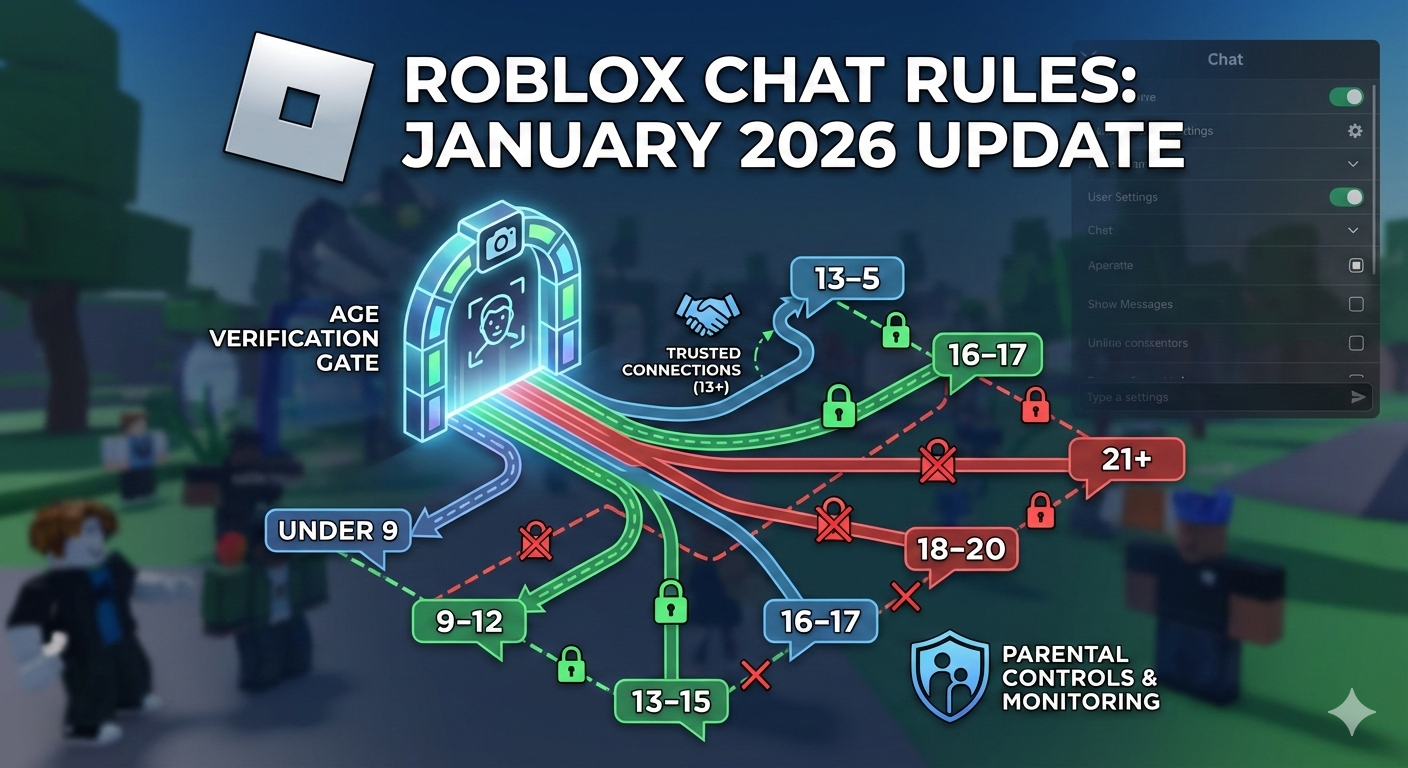
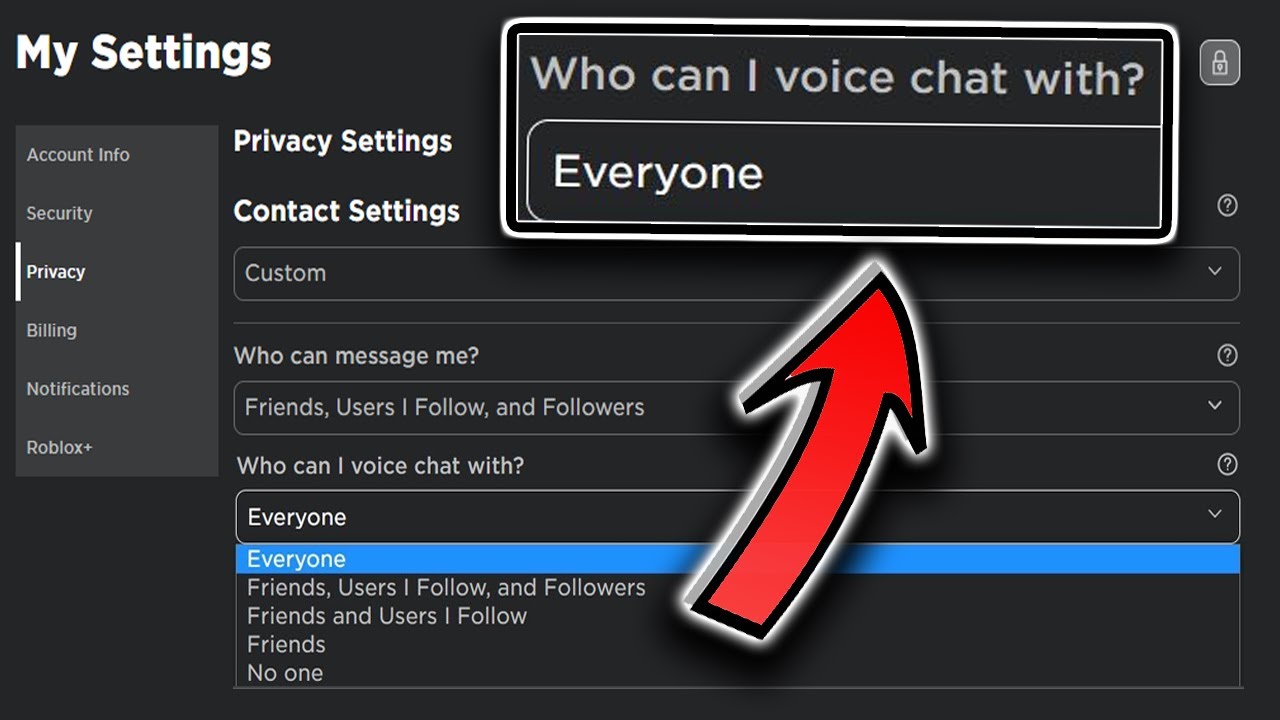

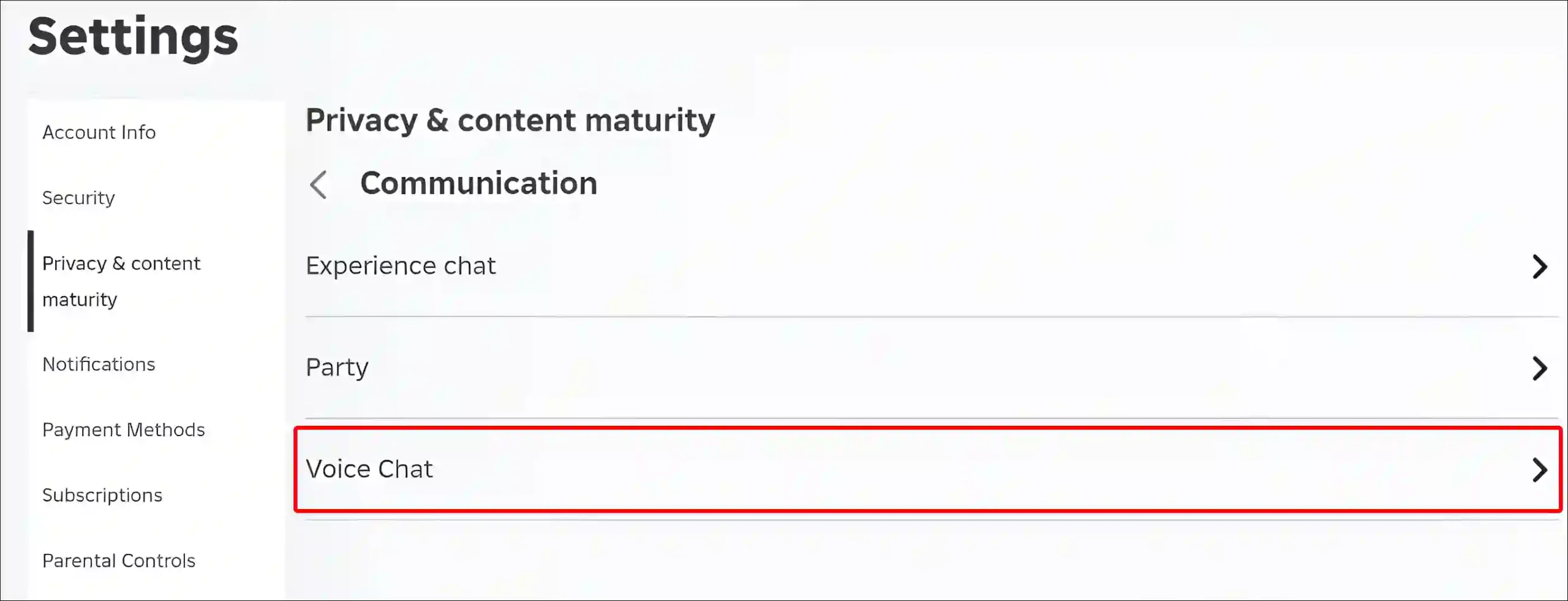
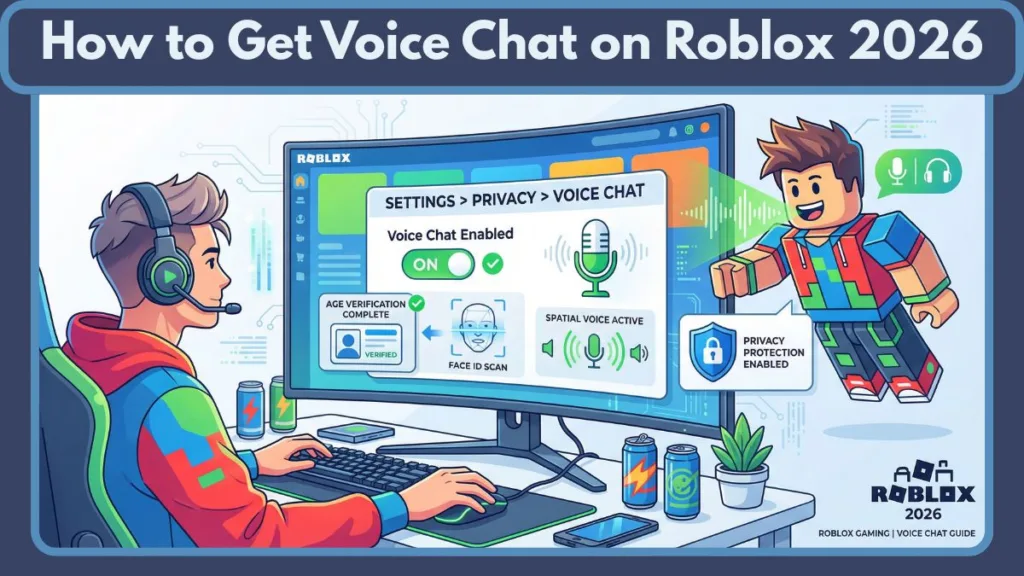
Roblox S New Chat Rules Explained January 2026 Roblox New Chat Rules . Age For Voice Chat Roblox . How To Get Voice Chat In Roblox Step By Step Pictures Rob6 768x399 . How To Turn On Voice Chat In Roblox Mobile And PC Roblox Voice Chat Settings Scaled.webp. How To Get Voice Chat On Roblox 2026 Enable VC Without ID Izoate How To Enable Voice Chat In Roblox 2026


How To Turn Your Roblox Chat Settings On In Roblox YouTube . 2026 Comment Activer Le Chat Vocal Dans Roblox Guide Rapide Enable Voice Chat Roblox Steps . How To Message On Roblox 2026 A Quick Guide . All 5 Ways To Private Chat In Roblox Step By Step Guide 04bb742a 8dd4 4eb6 805a. How To Enable Voice Chat In Roblox RoCodes Gg RoCodes 1656 How To Enable Voice Chat In Roblox



How To Enable And Use Voice Chat On Roblox Tech How 3 Enable Beta Features. How To FIX Your Chat Settings Prevent You From Sending Messages In . How To Turn On Voice Chat In Roblox Mobile And PC Roblox Settings Scaled.webp. 7 Ways To Fix Roblox Voice Chat Not Working On Windows PCs Input Device Options Roblox Voice Chat Not Working . How To Change Chat Settings On Roblox How To Personalize Your



How To Fix Your Chat Settings Prevent You From Sending Messages In . How To Message On Roblox 2026 A Quick Guide . Ab Wann Ist Roblox Voice Chat Roblox Enable Voice Chat . How To Fix Chat Settings In Roblox Why Can T I Chat In Roblox YouTube . Roblox Voice Chat Not Working How To Fix It Step By Step Roblox Voice Chat Settings



How To Message On Roblox 2026 A Quick Guide Private Chat In Roblox Step 11 . Roblox Chat Update 2026 Explained Mandatory Age New Roblox Chat Update 2026. How To Fix Your Chat Settings Prevent You From Sending Messages In . Is Roblox Removing Chat In 2026 Answered Gamer Tweak Roblox Chat Age. How To Fix Your Chat Settings Prevent You From Sending Messages In


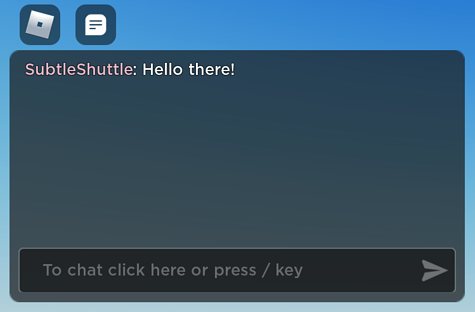

Fix Roblox S Inability To Chat Issue In Select Regions With Us. Your Privacy Settings Prevent Chat With Some People . How To Fix Your Chat Settings Prevent You From Sending Messages In . New In Experience Text Chat System Public Release 2 475x312 . Why Won T My Roblox Voice Chat Work Simple Fixes




Why Won T My Roblox Voice Chat Work Simple Fixes . Can 17 Year Olds Use Voice Chat On Roblox Today . Roblox Chat 2026 The New Age Based Chat System Explained Roblox Chat Was Eltern Wissen Muessen.BP BcCTF ZXnRaV.webp. Is Roblox Removing Chat In 2026 197po.webp. How To Enable Voice Chat In Roblox The Ultimate Guide For Gamers The AD 4nXf